Ask an AI assistant what a particular video says and you will usually receive a polite apology. The assistant cannot watch the video, and it has no means of fetching the words that were spoken in it. This is a curious gap, because for most videos the words already exist, sitting in a caption track that nobody downloads. What the assistant lacks is not intelligence but a tool.
The Model Context Protocol, usually shortened to MCP, is the standard way of giving assistants such tools. A program that speaks the protocol, called an MCP server, describes a few operations it can perform, and the assistant decides when to call them. In this article we connect one such server, the one that Transcript Dock provides, to Claude Code, Claude Desktop, Cursor and the other common clients. I work on Transcript Dock, so please read what follows as an informed account rather than a neutral review. The server is included on every plan, the free one among them, which comes with fifty caption transcripts every thirty days.
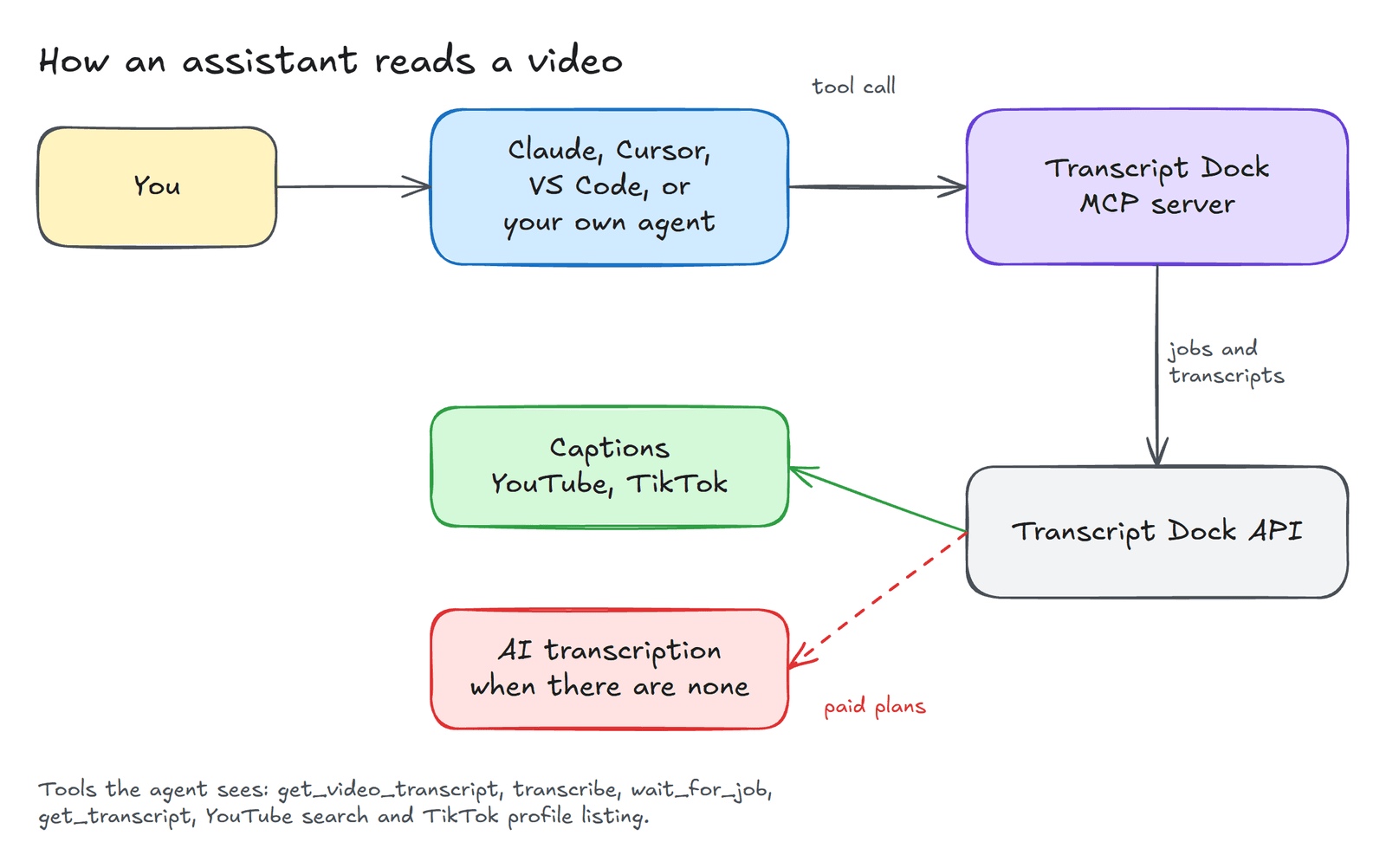
What happens when you ask#
The diagram above shows the chain of events. You ask your assistant to summarise a talk. The assistant, which the protocol calls the client, notices that it has a tool for reading videos and calls it with the link. The MCP server turns that call into a job on the Transcript Dock API, which reads the video's captions or, on a paid plan, transcribes the audio when no captions exist. The transcript travels back up the same chain, and the assistant writes its summary from the actual words rather than from guesswork. None of this requires you to write code.
The quickest route: the remote server with sign in#
The server lives at https://www.transcriptdock.com/mcp. If you use Claude Code, a single command adds it.
claude mcp add --transport http transcriptdock https://www.transcriptdock.com/mcp
Then type /mcp inside Claude Code and sign in with your Transcript Dock account. There is no key to copy and nothing to paste into a configuration file, which is the arrangement I would recommend to anyone trying this for the first time.
When the client cannot sign in: an API key#
Some clients do not yet support the sign in flow that the protocol defines. For those, create a key in the dashboard under API keys & webhooks and pass it as a header.
claude mcp add --transport http transcriptdock https://www.transcriptdock.com/mcp \--header "Authorization: Bearer td_live_YOUR_KEY"
Clients that are configured with a JSON file, such as Cursor, Windsurf and VS Code, take the same information in this form.
{"mcpServers": {"transcriptdock": {"url": "https://www.transcriptdock.com/mcp","headers": { "Authorization": "Bearer td_live_YOUR_KEY" }}}}
Running the server on your own machine#
If you prefer that nothing but the API calls leave your computer, the server can also run locally through npx.
{"mcpServers": {"transcriptdock": {"command": "npx","args": ["-y", "@transcriptdock/mcp"],"env": {"TRANSCRIPTDOCK_API_KEY": "td_live_YOUR_KEY","TRANSCRIPTDOCK_BASE_URL": "https://www.transcriptdock.com"}}}}
Whichever form you choose, restart the client after editing its configuration. Most clients read the list of servers only when they start, and a surprising amount of puzzled debugging comes down to this one step.
What the assistant can now do#
The server offers a small set of tools, and the assistant chooses among them as the conversation requires. The one it reaches for most is get_video_transcript, which takes a YouTube or TikTok link and returns the transcript with timestamps. For longer work there are transcribe, wait_for_job and get_transcript, which split the same process into steps, and there are tools for searching YouTube and listing the recent videos on a TikTok profile, so that the assistant can find material on its own rather than waiting for you to paste links.
In practice the requests that work best are the ones you would give a capable research assistant. You might ask it to summarise a conference talk in ten points with the time each point was made, to find the three most recent videos on a creator's TikTok and say what each one announces, or to collect every remark about pricing in a long podcast episode. Because the answers are drawn from timed segments, the assistant can tell you where in the video to look, which is the difference between a summary you have to trust and one you can check.
Costs and limits#
Each caption transcript costs one credit, and reading a video that your workspace has already fetched costs nothing. Videos without captions can be transcribed on the paid plans at two credits for each started minute. The remote server allows a single tool call about forty seconds. A longer job does not fail; the call returns a job identifier instead, and the assistant waits for it with wait_for_job.
When something goes wrong#
If the tools do not appear, restart the client, since that is the most common cause. If every call returns a 401 error, the key is missing, has been revoked, or lacks the word Bearer in front of it. If a particular video fails with NO_CAPTIONS, it simply has no caption track; on a paid plan you can ask the assistant to transcribe it with AI instead.
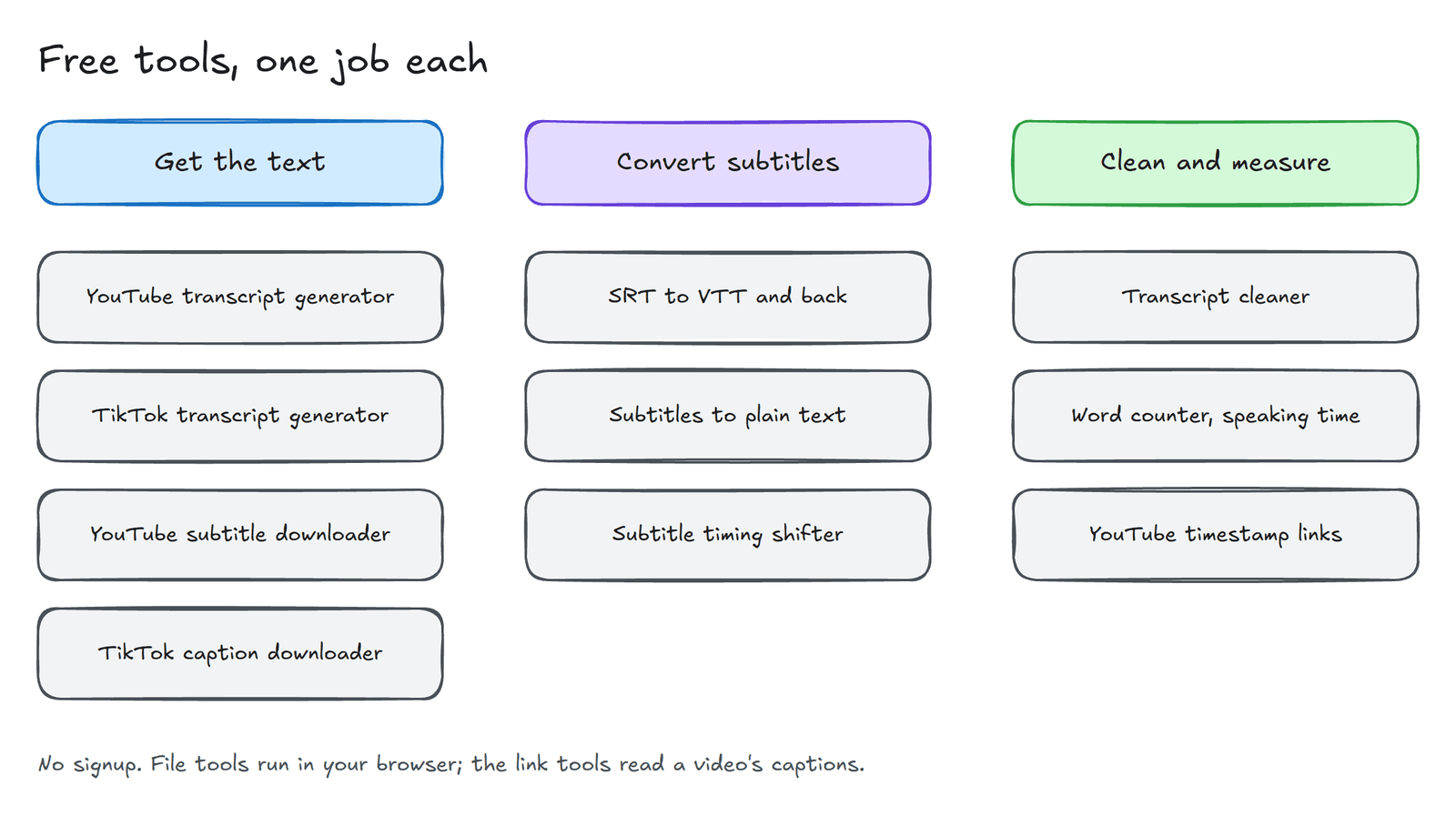
The MCP documentation has setup notes for each client. And if all you want is to read one transcript yourself, the free YouTube transcript generator does that without an account.
Created with the help of AI.